Explainability and Utterances Annotation
Explainability is a language evaluation tool that addresses intent recognition and answers the question: “Why should authors trust the Druid machine learning model?” This tool helps authors get insights into the machine learning model to easily understand the reasons behind AI Agent behavior, figuring out when and why predictions occur. DRUID Explainability provides explanations on why the NLP model associated an utterance to a specific flow and allows authors to further fine-tune the NLP model by annotating utterances, creating a more trustworthy machine learning model.
Druid Explainability uses the Local Interpretable Model-Agnostic Explanations (LIME) algorithm that explains the predictions of the word embedding classifier in an interpretable and faithful manner. The LIME algorithm takes the training phrase, extracts each word within the phrase, and approximates the NLP model locally in the neighborhood of the prediction being explained. It checks how the extracted word matches against the NLP model, puts the word back, and checks again how it performs. If there are differences between the two matching tries, the extracted word contributes positively or negatively to the flow association.
Accessing Explainability
To view the explanation and matching metrics of an utterance:
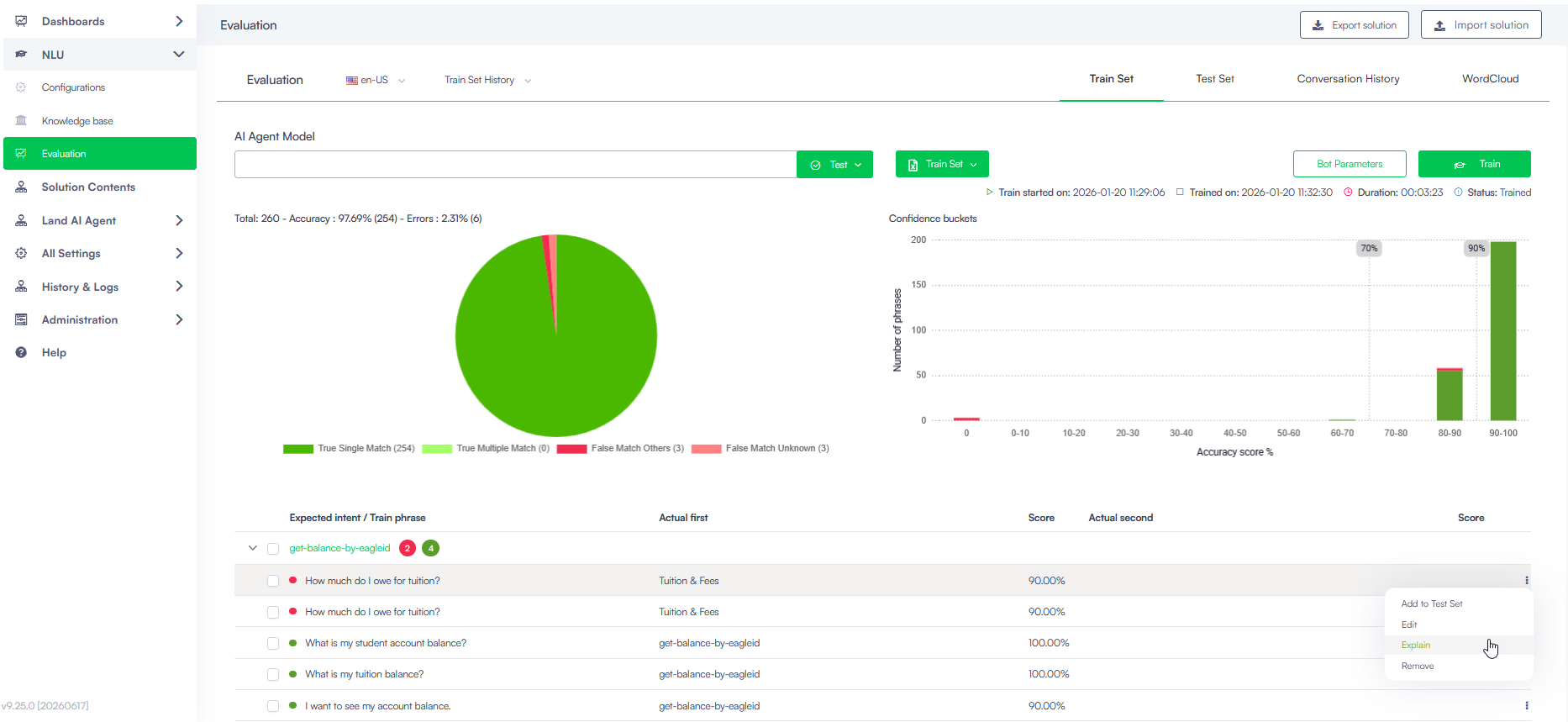
- Go to NLU > Evaluation
- Click either the Train Set tab.
- Expand the intent that contains the utterance you want to analyze.
- Click the actions icon displayed inline with the utterance.
- Select Explain.
Explainability at Druid Conductor Level
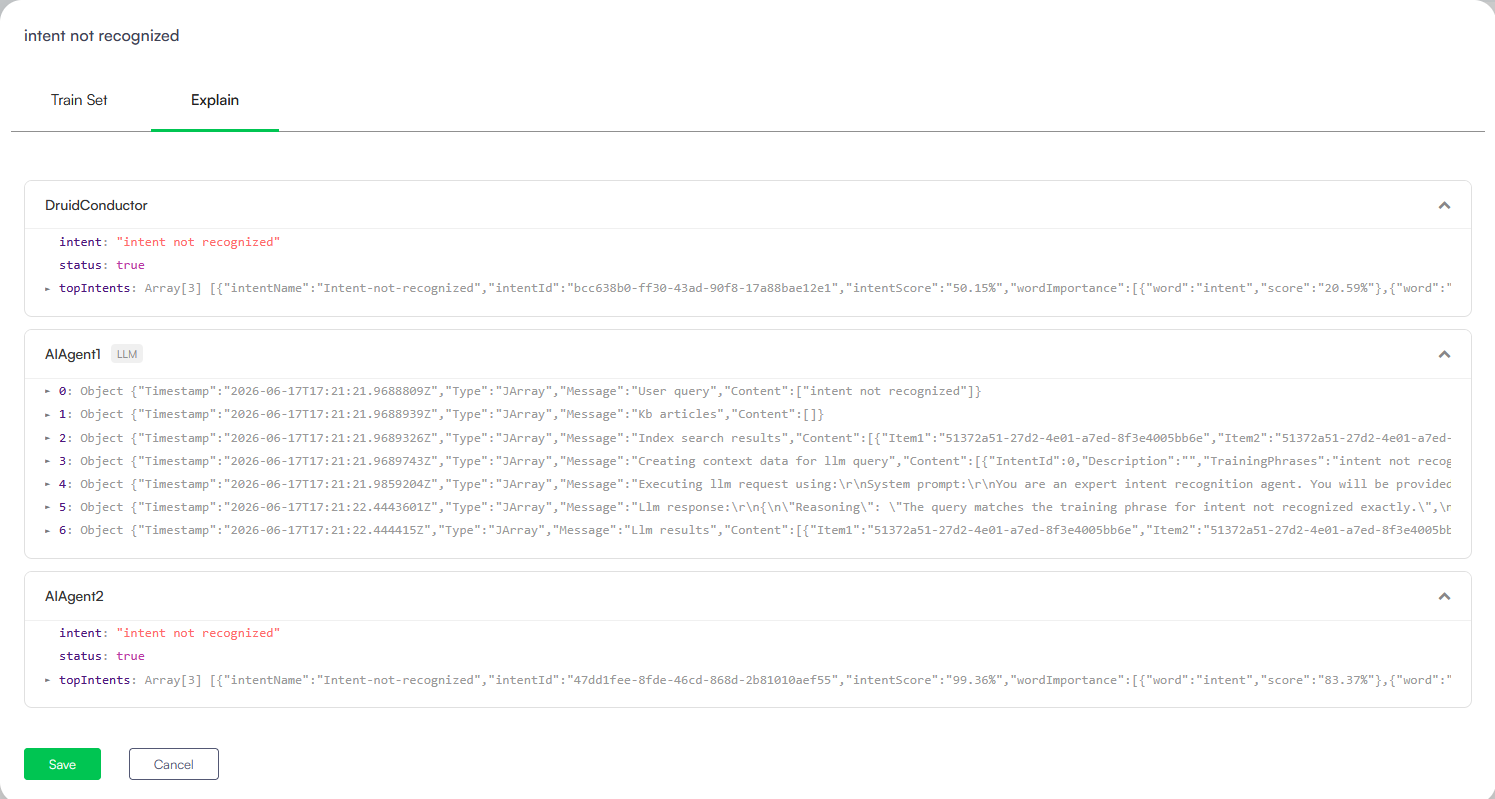
The Druid Conductor Explainability provides a centralized overview of all predictions performed across the Druid Conductor and its orchestrated AI Agents.
When reviewing data inside the Druid Conductor evaluation, the Explain tab breaks down how the orchestration layer processed the user query.
Explainability of Orchestrated AI Agents
When evaluating individual AI Agents, the details within the Explain tab change dynamically based on the specific engine type handling the AI Agent logic:
Semantic / NLU Usage (Word Importance Chart)
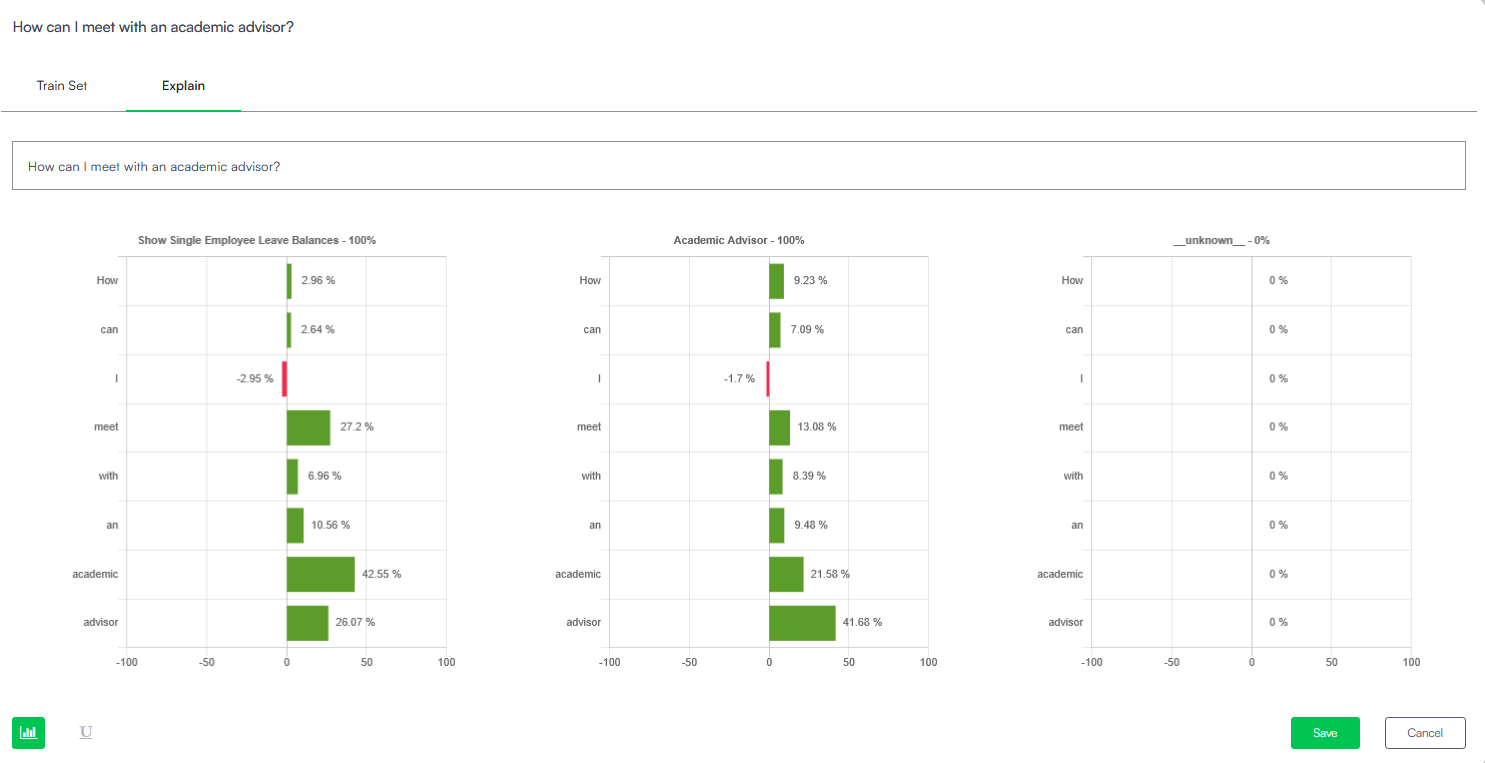
For traditional semantic NLU classification, the Explain tab provides a list of words from the tested utterance and shows how they contributed to the top matched flows, including their contribution percentage:
- Positive Contribution: Words that contributed positively to the flow association are marked with green bars.
- Negative Contribution: Words that contributed negatively to the flow association are marked with red bars.
LLM Usage (Execution Log)
For AI Agents running on an LLM orchestration pattern, LIME token visualization is not used. Instead, the Explain tab displays a sequential execution log object array tracking how the LLM determined its routing choices.
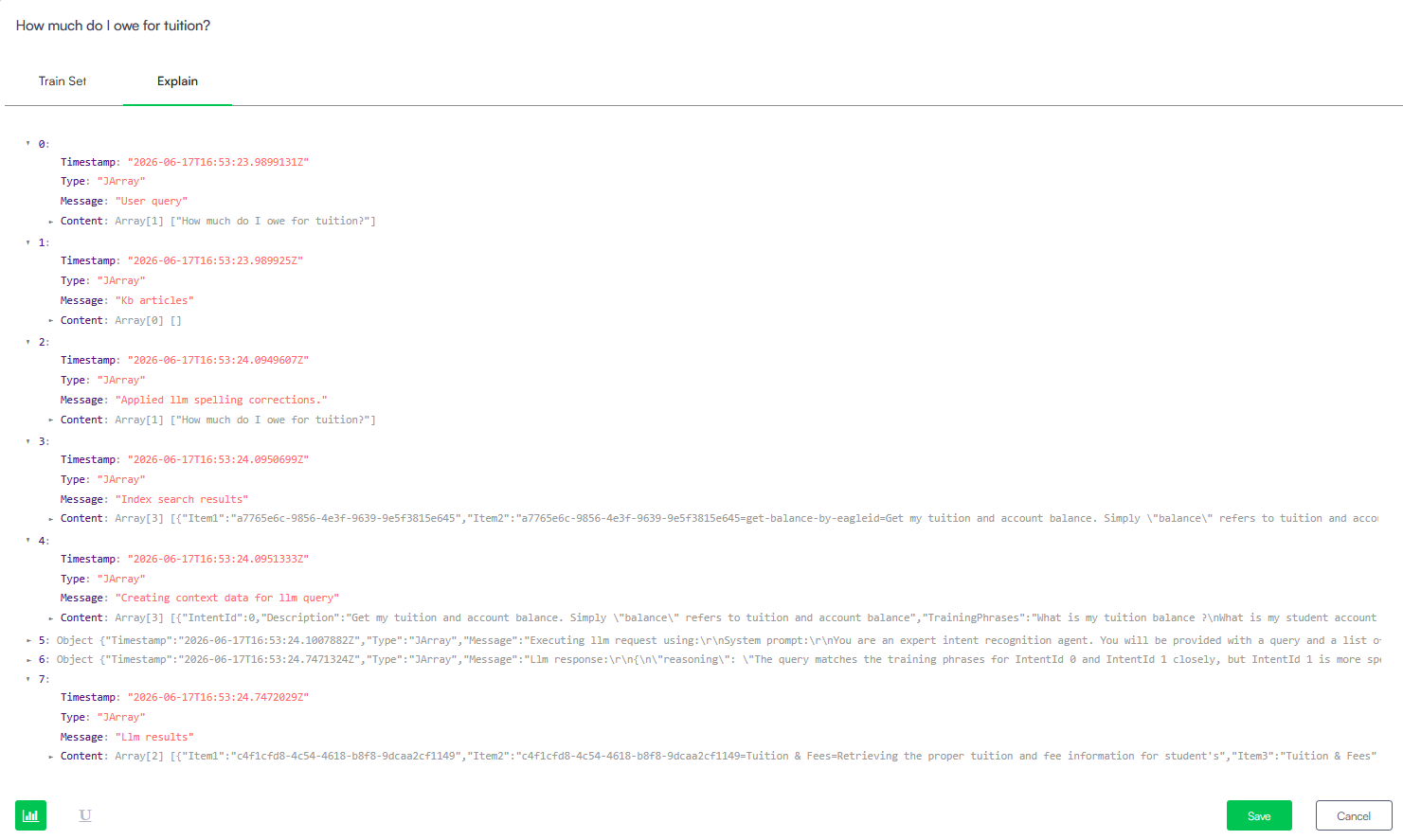
This log exposes:
- The raw user query and any applied LLM spelling corrections.
- Knowledge base articles or index search results pulled for semantic relevance.
- The system prompt instructions and context data created for the LLM query.
- Raw LLM responses containing the internal reasoning string detailing why specific flows or intents were chosen.
Fine tuning the NLP model by annotating utterances for NLU usage
You can fine-tune the training model directly in the Explain page by making corrections to the training phrases or by deleting phrases.
Click the U icon at the bottom of the Explain tab.
The page displays the utterances and training phrases on each top matched flow, with words from the selected training phrase marked where they appear across the matched flows.
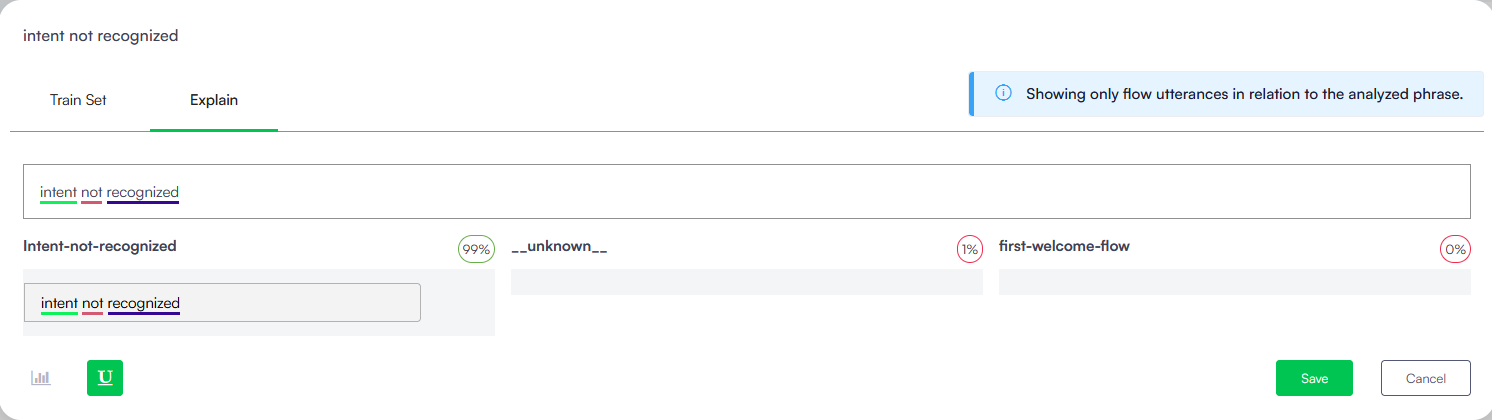
You can correct training phrases or you can delete them as best suits your needs to create a trustworthy model.
Update training phrases
To easily spot a specific word from the training phrase, use the browser’s CTRL+F function.
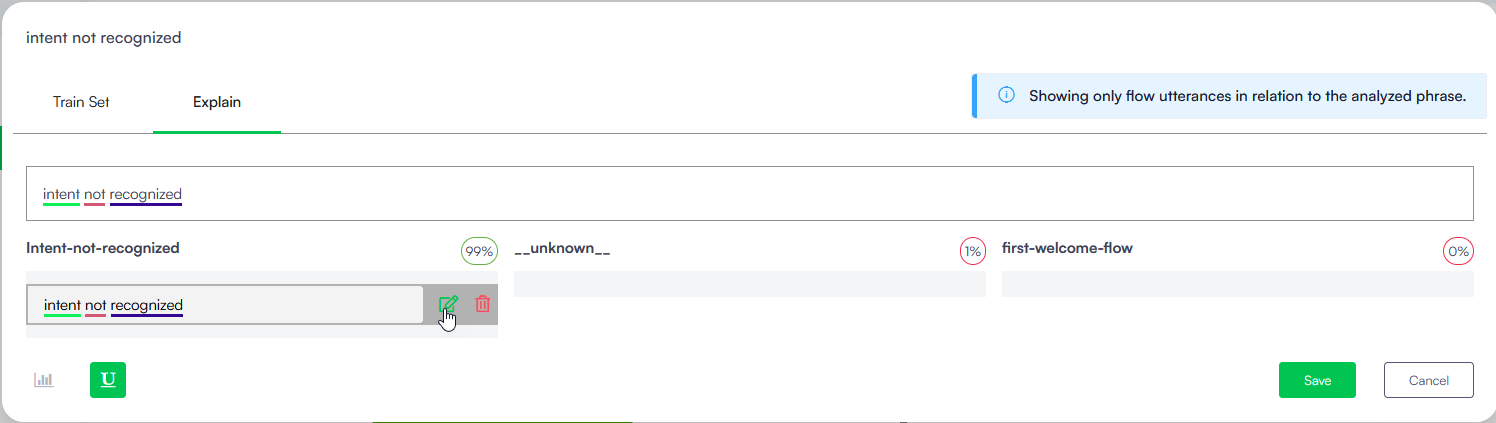
To update a specific word, hover the mouse over the phrase where you want to make the update and click the Edit icon displayed inline.
The phrase becomes editable. Change the word as best suits your needs and click the Save icon also displayed inline.
Save the modal. In order for the draft content to take effect, you need to train the AI Agent. Go to NLU > Configurations and click Train.
Deleting training phrases
If you decide that a training phrase should be removed from the top matching flow, you can remove it. To do so, hover the mouse over the training phrase and click the Delete icon, then save the modal.
The training phrase will be removed from the flow; however, in order for the update to take effect in the Evaluation tool, you need to train the AI Agent. Go to NLU > Configurations and click Train.